Simple, powerful steps to keep your accounts safe and your passwords organized. No tech background needed — we walk you through everything.
Two-factor authentication (often called "2FA") adds a second step when you sign in to an account. Instead of just typing a password, you also confirm your identity a second way — like entering a code sent to your phone.
Think of it like a deadbolt on your front door. Your password is the doorknob lock, and 2FA is the deadbolt. Even if someone picks one lock, they still can't get in without the other.
A well-known security study found that 80% of data breaches could have been prevented if two-factor authentication had been in place. That's a powerful reason to turn it on.
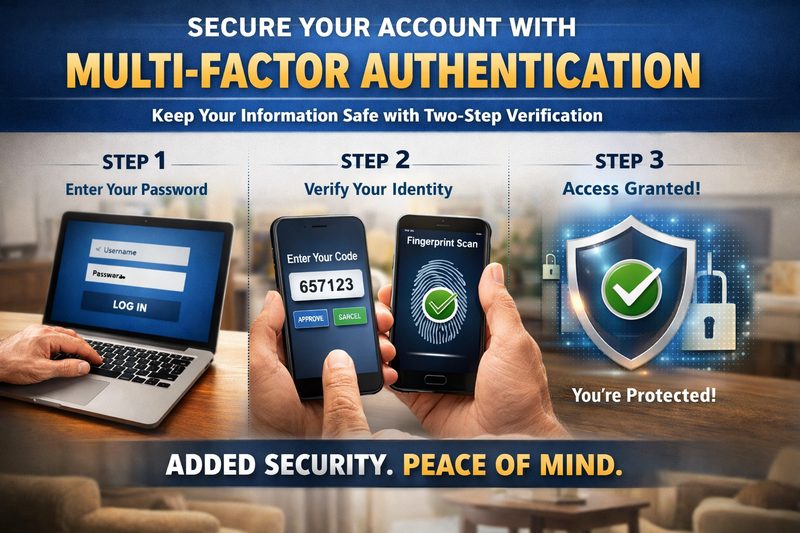
There are several ways to add that second layer of protection. Here are the most common methods, from simplest to most advanced.
After typing your password, you receive a short code by text message, email, or phone call. Enter the code and you're in. This is the most common method — used by Facebook, Gmail, and most banking apps.
Many smartphones already use your fingerprint or face to unlock. The same technology can serve as your second factor, confirming it's really you — no codes to type.
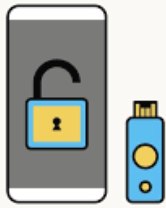
A small USB device (like a YubiKey) you plug in after entering your password. It's the strongest option — used by tech companies and government agencies. You just need to keep the key with your house keys.
Once you set it up, your phone or computer will remember you. You'll only be asked for the second step when using a new device or logging in from an unfamiliar place — and it only takes a moment.

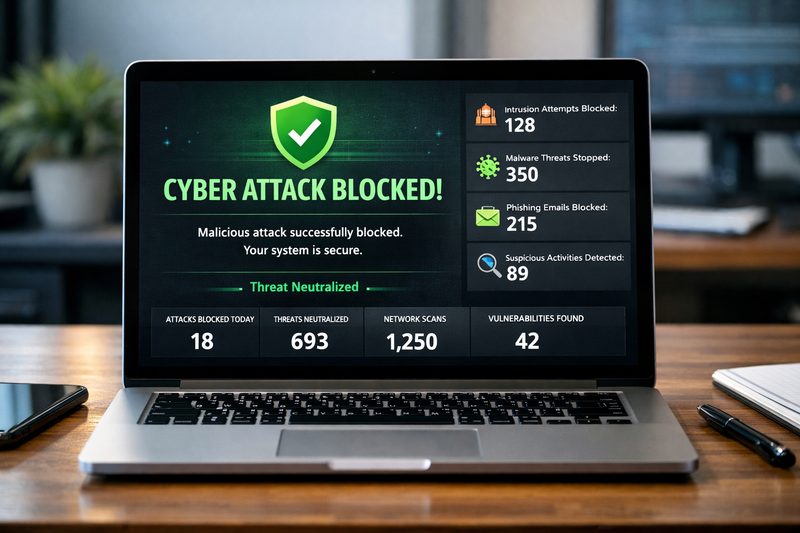
The most obvious benefit is stronger security. Even if someone steals or guesses your password, they still can't get into your account without that second step.
But there's another benefit many people overlook: early warning. If you receive a verification code you didn't request, that's an immediate signal that someone is trying to break into your account. You can change your password right away — before any damage is done.
If you use the same password for multiple accounts (and most people do), a single breach can give attackers access to everything — your email, your bank, your social media, even your medical records.
A password manager is a secure app that creates and stores a unique, strong password for every account you have. You only need to remember one master password — the app handles the rest.
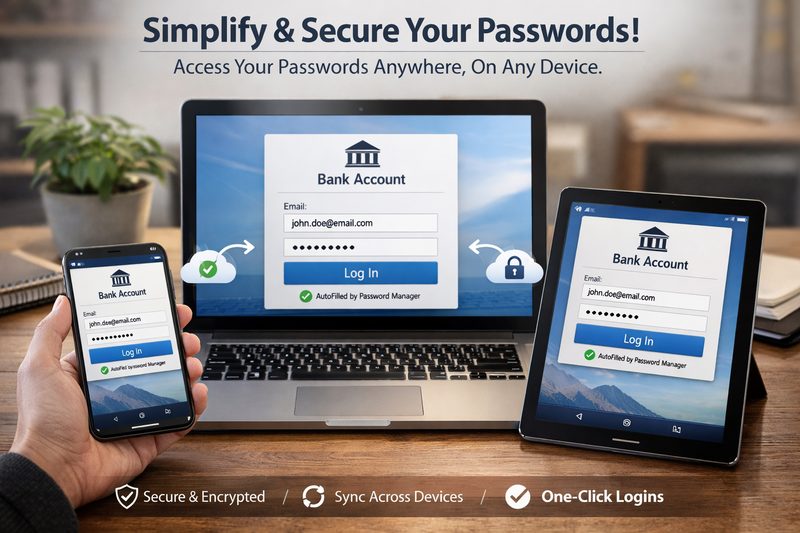
When you visit a website, the password manager fills in your login automatically. It generates passwords that are long, random, and virtually impossible to guess. Everything is encrypted and stored safely.
It works on your computer, phone, and tablet — so your passwords follow you everywhere, securely.
Choosing the right password manager can be confusing with so many options out there. HomeNetIQ recommends the best fit for your needs, then installs and configures it on all your devices. We'll walk you through how to use it until you're comfortable — no tech skills required.